How to Merge Cells in Google Sheets: A Step-By-Step Guide
Need to combine cells in Google Sheets? Follow this quick guide to merging cells and when to use this function.
![[Featured Image] A person works on a laptop at a desk while wearing headphones and learns how to merge cells in Google Sheets.](https://d3njjcbhbojbot.cloudfront.net/api/utilities/v1/imageproxy/https://images.ctfassets.net/wp1lcwdav1p1/5NvGFMqcZwws9htP448wrq/d13b5c156d5ff15fa7d4a7194a20cdee/iStock-853931168.webp?w=1500&h=680&q=60&fit=fill&f=faces&fm=jpg&fl=progressive&auto=format%2Ccompress&dpr=1&w=1000)
Key takeaways
To merge cells in Google Sheets, highlight them, select Format from the menu at the top, and hover over Merge cells to select a method.
Merge options let you combine all highlighted cells into a single cell, combine cells into columns, or combine them into rows.
When you merge cells, it can enhance the spreadsheet's aesthetics by making the data appear cleaner.
You can unmerge cells by selecting Format > Merge > Unmerge. This can be particularly helpful during data analysis because merged cells can compromise data integrity.
Explore merging and unmerging cells in Google Sheets and the common errors to avoid when doing so.
How to merge two cells in Google Sheets?
To combine two or more cells in Google Sheets, you can use the merge function. This is typically used for formatting your data. Once you merge cells, data analysis can become tricky in Google Sheets because it limits the functionality for sorting, copying, pasting, and moving data, so it's most often used for aesthetic purposes.
How to merge cells in Google Sheets
Here's a quick summary of the steps you'll take to merge cells in Google Sheets:
Highlight the cells that you want to merge.
Go to Format in the top menu.
Hover over Merge cells and choose a merging method.
Let's take a closer look at each step.
Ready to deepen your knowledge of Google Sheets?
To begin, you'll need your tab open to your spreadsheet. If you’re not already working with your own data set and want to follow along with our examples, make a copy of this Google Sheets template to practice.

1. Highlight the cells that you want to merge.
The example below is for combining the three “Director” columns into one. This makes the data look cleaner and indicates that each name in these columns falls under the directory category.
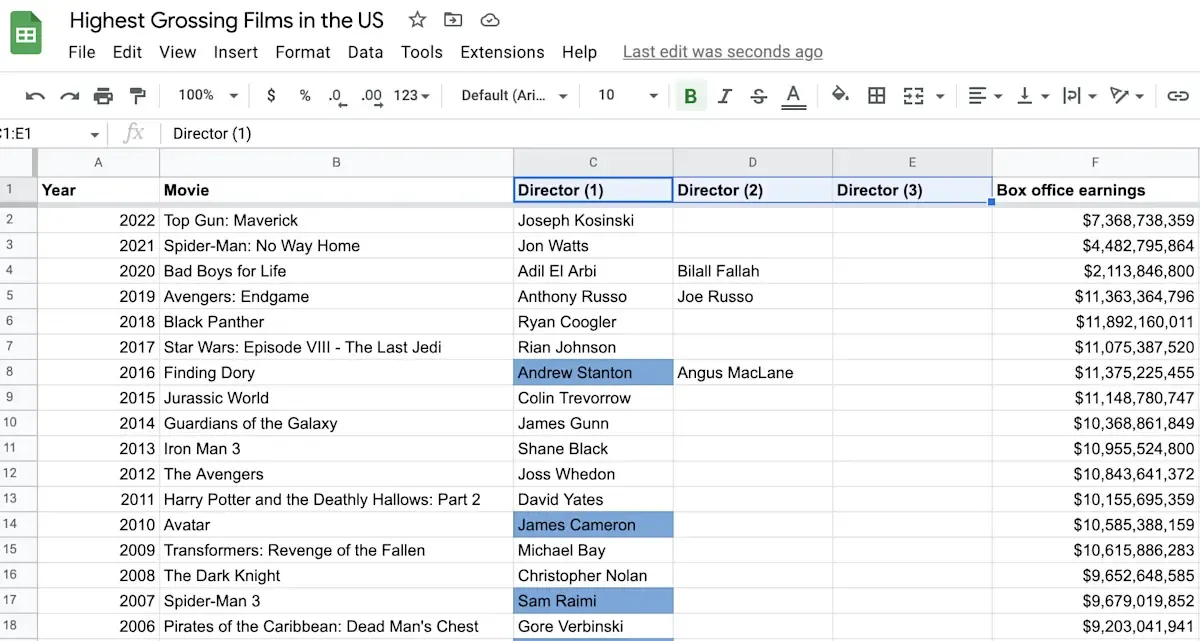
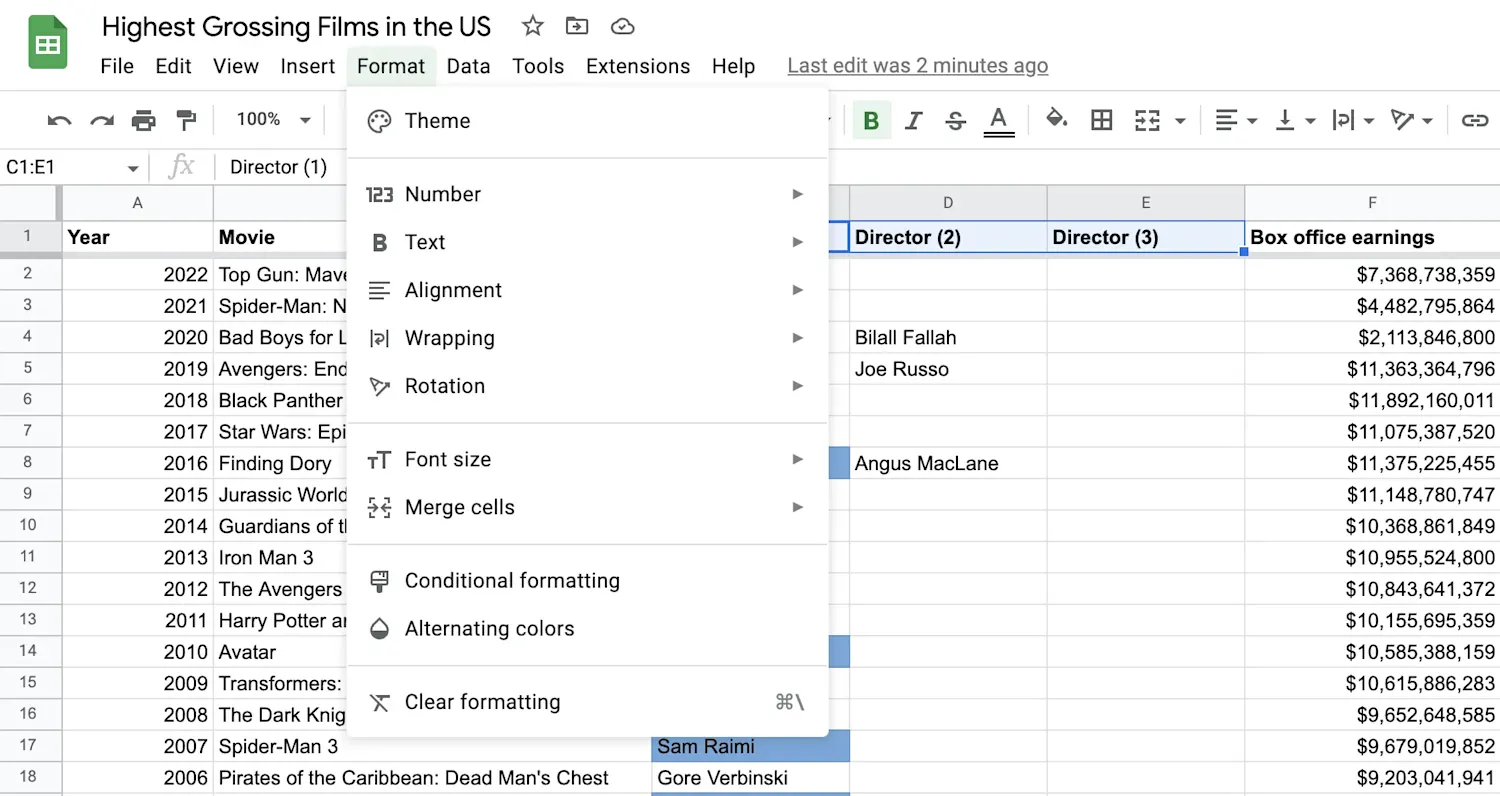
2. Go to 'Format' in the top menu.
Click on the Format tab, and a drop-down menu will appear.
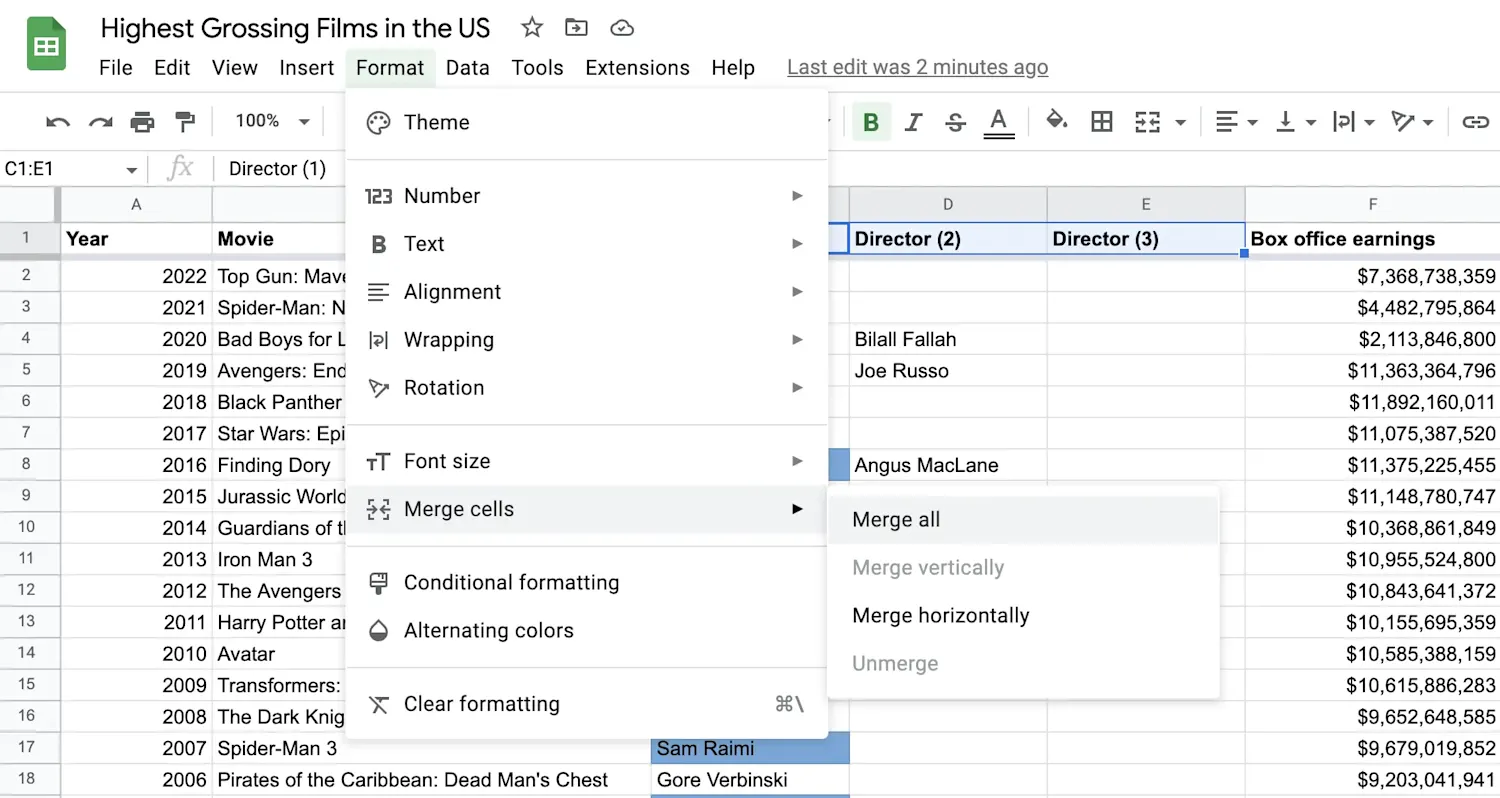
3. Hover over 'Merge cells' and choose a merging method.
Your options are Merge all, Merge vertically, or Merge horizontally. Click on the one that suits your needs. In this example, we will select Merge horizontally.
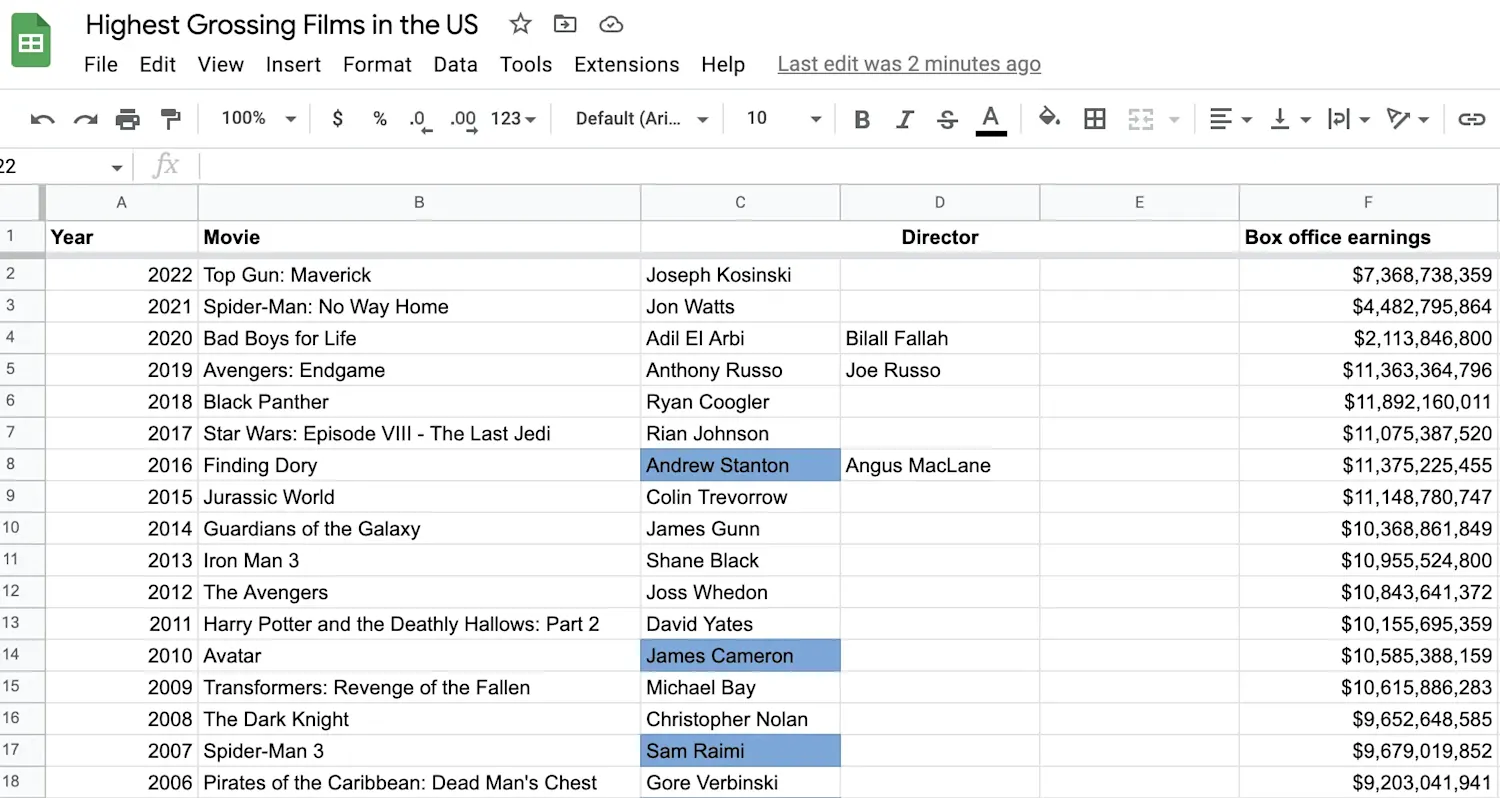
Your cells will merge into one cell titled Director (1). You can format this merged cell however you like. In this example, we removed the (1) and center-aligned the text. It will look like this:
Which way to merge?
You have three options for the merge function. “Merge all” will combine all highlighted cells into one cell, as seen above. “Merge vertically” will just merge cells in each column if you highlight multiple columns, which you might use if you want to create columns (without data). “Merge horizontally” will merge cells in each row for your selected rows. You might use this function if you have several rows of titles for your data.
Learn more: How to Highlight Duplicates in Google Sheets
How to unmerge cells in Google Sheets
To unmerge your cells, simply highlight the merged cell. Then, go to Format > Merge cells > Unmerge. The combined cells will become single cells again.
Common errors when merging cells
If you try to merge several cells that each have text inside of them, then only the top-leftmost value will stay and become the main text in the merged cell. An error message will appear asking whether you want to merge anyway. You can click the “OK” button or proceed to cancel.
Limitations and alternatives of merging cells in Google Sheets
Merging cells can be problematic if you are analyzing data. Merged cells may not be picked up when you sort, copy, paste, or move data, so you will end up losing data integrity of the rows and columns, which could lead to inaccuracies. To avoid this, use the merge function only for improving the aesthetics of your sheet, or else you could risk losing important data.
Explore our free data analysis resources
Get insights into in-demand skills and career trends, along with updates on popular skills, tools, and certifications, by subscribing to our LinkedIn newsletter, Career Chat. Also, consider checking out the following resources to continue learning about data analysis and using Google Sheets:
Bookmark for later: How to Freeze a Row in Google Sheets
Watch on YouTube: Career Spotlight: Data Analyst
Learn from an Expert: 7 Questions with a Data Analytics Professor
You can also learn more about data analysis and other skills with Coursera Plus. A monthly or annual subscription gives you access to more than 10,000 flexible programs.



Keep reading
- November 19, 2025
- October 22, 2025
- December 6, 2025
- January 24, 2026
- October 8, 2025
- January 13, 2026
Coursera Staff
Editorial Team
Coursera’s editorial team is comprised of highly experienced professional editors, writers, and fact...
This content has been made available for informational purposes only. Learners are advised to conduct additional research to ensure that courses and other credentials pursued meet their personal, professional, and financial goals.